



How to use Winget (Windows Package Manager)
Winget the Windows Package Manager, simplifies software management on Windows 10 and 11:
Winget built-in on Windows 10/11, simplifies software management. Find, install, update, and uninstall apps with ease using winget’s command-line interface.
Microsoft’s introduction of Winget, officially known as the Windows Package Manager, marked a significant step forward in the realm of software management for Windows. Winget is a command-line tool designed to streamline the installation, updating, and configuration of software packages on Windows 10 and Windows 11. Winget built-in on Windows 10/11, simplifies software management. Find, install, update, and uninstall apps with ease using winget’s command-line interface. This article explores the features, benefits, and usage of Winget, illustrating how it simplifies software management for both developers and everyday users.
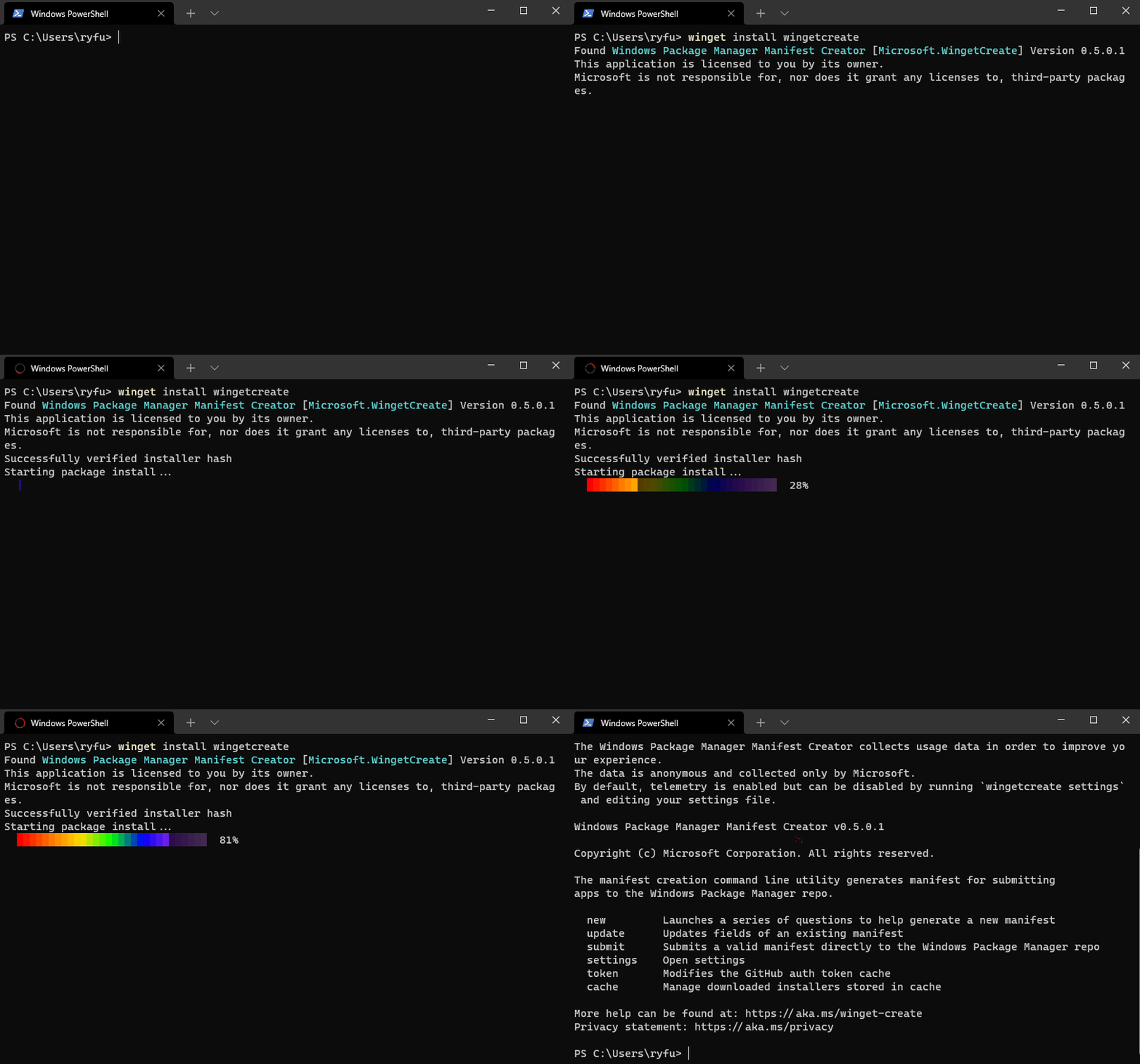
Features of Winget
Winget boasts a variety of features that make it a powerful tool for managing software packages:
Command-Line Interface: Winget operates through a command-line interface (CLI), allowing users to execute commands quickly and efficiently. This is particularly beneficial for power users and developers who prefer scripting and automation.
Package Search and Installation: With Winget, users can search for software packages from a vast repository and install them with a single command. This eliminates the need to manually download and install software from various websites.
Package Updates: Keeping software up-to-date is crucial for security and functionality. Winget simplifies this process by allowing users to update all installed packages with a single command.
Configuration Management: Winget enables users to manage software configurations, ensuring that applications are set up according to their preferences during installation.
Scripting and Automation: Winget supports scripting, making it an ideal tool for automating software deployment and management tasks. This is especially useful in enterprise environments where consistent software configurations are essential.
Getting started with Winget is straightforward. Follow these steps to begin using the Windows Package Manager:
Installation: Winget is included with the Windows App Installer package. Users can download and install the latest version from the Microsoft Store or manually download the installer from the official Winget repository. Get it from the Microsoft Store or [GitHub](https://github.com/microsoft/winget-cli).GitHub.
Basic Commands:
- Search for a package:
winget search <package_name> - Install a package:
winget install <package_name> - Update all packages:
winget upgrade --all - Uninstall a package:
winget uninstall <package_name>
- Search for a package:
winget search <software_name>
winget install <package_name>
winget upgrade --all
winget uninstall <package_name>
Remember to only install from trusted sources within winget.
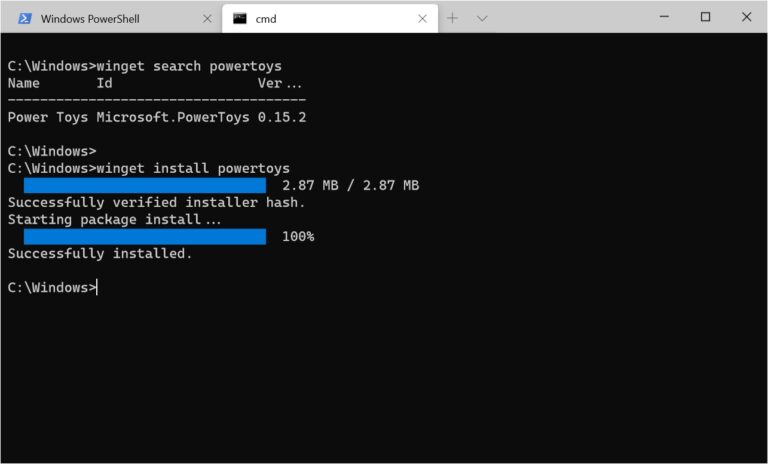
3. Advanced:
winget list
winget show <software>
Start using Winget to manage software efficiently on your Windows system.
Conclusion
Winget simplifies software management on Windows by providing easy-to-use commands for searching, installing, updating, and uninstalling software. Whether you are a developer or an everyday user, Winget can help you keep your software environment up-to-date and consistent with minimal effort.
Here are some credible sources you can search for using your preferred web browser:
- Search for “Microsoft winget documentation”
- Search for “Use the winget tool to install and manage applications” on Microsoft Learn (https://learn.microsoft.com/en-us/windows/package-manager/winget/)
- Source: Microsoft Winget GitHub Repository